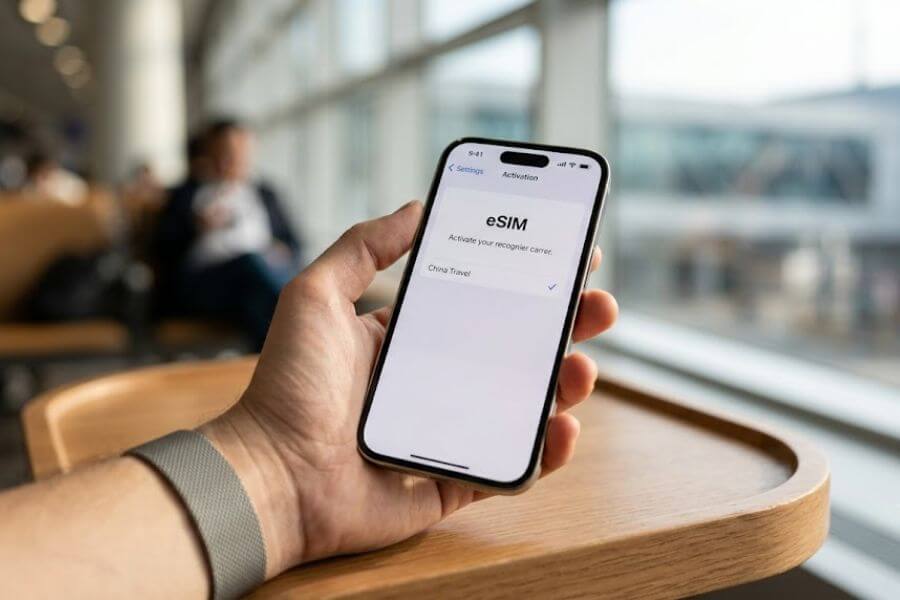
Staying connected while exploring China is your ultimate superpower. From navigating subway systems in Shanghai to paying for street food in Beijing, your phone is your lifeline. A travel eSIM is the smartest way to skip the hassle of physical plastic cards, airport kiosks, and expensive roaming fees. This complete guide walks you through every single step to get your phone ready before you land, ensuring you have instant data the second your plane touches the tarmac.
Key Takeaway
Get an eSIM that includes a built-in Virtual Private Network (VPN) or global routing before you leave home. This ensures you can access your favorite apps like messaging tools, maps, and social networks the moment you land, without needing to configure separate censorship circumvention software. Install the data profile a day before your flight, turn it on when you land, and you are ready to explore.
What Exactly Is an eSIM and Why Do You Need One
An eSIM is an electronic subscriber identity module. Instead of inserting a tiny piece of plastic into the side of your smartphone, an eSIM is completely digital. It downloads a small profile onto a special chip already built inside your device. Think of it like downloading an app that transforms your phone into a local device anywhere in the world.
When you travel to China, this technology completely changes the game. In the past, travelers had to stand in long lines at international airports, hand over physical passports to strangers, and swap out their home SIM cards. That old method meant risking losing your original card, which holds your home phone number. With a digital profile, your home card stays safely inside your phone, and you add a second, temporary data lane alongside it.
The real magic of using a digital profile for this specific destination comes down to internet routing. China uses a massive firewall infrastructure that restricts access to many global websites, search engines, video platforms, and chat apps. If you buy a local physical SIM card inside the country, you will find yourself blocked from these global tools unless you have technical knowledge to set up extra software. However, international travel eSIMs route your data back through servers in places like Hong Kong, Singapore, or the United States. This means you bypass those blocks naturally, letting you check your standard emails, view online maps, and message your family just like you do at home.
Checking if Your Device is Ready for the Journey
Before you spend any money on a data plan, you must verify that your smartphone can actually use this technology. Not every phone has the required inner hardware, and some phones are locked by cellular networks.
First, let us look at device compatibility. Most major smartphones made over the last several years support digital profiles. This includes newer generations of popular fruit-branded phones, major global Android brands, and premium pixel-branded devices. A quick way to check is to look into your phone settings menu. On many devices, if you go to the connections or cellular section and see an option that says “Add eSIM” or “Add Data Plan,” your hardware is ready to go.
Second, your phone must be completely unlocked by your current carrier. When you buy a phone on a monthly payment plan from a network provider, they often lock the device so it only works with their specific signal. If your phone is locked, it will reject any foreign data profile you try to install. You can check this status by calling your network provider or looking at the about section in your system settings. Look for a line that says network provider lock or carrier status. If it says “No SIM restrictions,” you are totally clear to use any international network you want.
Choosing the Best Data Provider for China
The marketplace for international digital profiles has grown significantly, giving you plenty of great choices. Different companies offer varied packages, so you want to choose one that fits your route and your budget.
When comparing providers, look closely at their network partners inside China. The two largest networks inside the country are China Mobile and China Unicom. You want a provider that utilizes these networks because they offer the most widespread coverage, from ultra-modern high-speed train routes to distant rural villages. If your provider uses a smaller partner network, you might experience dropped signals when you leave the massive concrete mega-cities.
Let us look at a breakdown of what the major types of international providers offer so you can see how they match up against each other.
| Provider Type | Best For | Typical Features | Data Routing Location |
| Global Travel Specialist Companies | General tourists and vacationers | App-based management, customer support, multi-day packages | Hong Kong or Singapore (Bypasses local restrictions) |
| Regional Asian Networks | Multi-country trips (e.g., China, Japan, Korea) | Shared data buckets, automatic network switching | Home country of the network provider |
| Unlimited Data Aggregators | Heavy video streamers and remote workers | Flat rates per day, high-speed throttles after limits | Mixed international servers |
Deciding How Much Data You Actually Need
It is easy to underestimate how much data you will use when traveling. When you are walking through a foreign city, your phone works much harder than it does when you are sitting at home on your residential wireless network.
Think about your daily habits. If you plan to use your phone mostly for text messaging, looking up train schedules, and translating menus, you will use a relatively small amount of data. A budget of one gigabyte per day is usually more than enough for these basic tasks. However, if you plan to upload video clips to social media, stream music while walking, or make long video calls back home to your friends, your consumption will soar. For heavy usage, look for packages offering three to five gigabytes per day, or choose an unlimited package.
Keep in mind that some unlimited packages have a hidden catch. They might give you high-speed data for the first two gigabytes of the day, and then slow your connection down to a crawl once you pass that limit. Read the fine print carefully. Look for phrases like fair usage policy or data throttling to make sure you will not get stuck with super slow internet right when you need to order a ride-sharing vehicle in the middle of the night.
The Step-by-Step Purchase Process
Once you pick a company and a plan that fits your trip, purchasing is remarkably straightforward. You do not need to ship anything to your house, meaning you can do this from your bedroom or even while waiting at the airport gate.
Most providers prefer that you use their official smartphone app or their secure website. You will select China as your destination, pick the total number of days for your trip, and select your data amount. Pay close attention to the duration options. If your trip is ten days long, do not buy a one-week pass thinking you can easily figure out the rest later. It is always best to cover your entire journey from day one to your departure date.
During checkout, you will create an account using your primary email address. Double-check that your email spelling is absolutely perfect. The provider will send your digital network profile to this exact email address in the form of a confirmation message containing a square graphic known as a QR code. If you typo your email, your digital profile goes into the void, and you will have to wait for customer support to rescue your purchase.
Preparing Your Phone Before Your Flight
Timing is everything when it comes to installing your new digital profile. The absolute best strategy is to perform the initial setup the day before you leave your home country while you are securely connected to your stable home wireless internet.
Do not wait until you arrive in China to start the download process. Airports can have patchy public internet, and trying to download system profiles while navigating a crowded customs terminal is highly stressful. Downloading the profile ahead of time does not mean your plan starts counting down immediately. Almost all travel profiles are designed to sit quietly on your device and only activate their countdown timer once they connect to a local Chinese cellular tower for the first time.
When you open the email from your provider, you will see the square graphic setup code alongside a set of long numbers. If you have a tablet or a computer nearby, pull up the email on that second screen. This makes it incredibly simple to point your smartphone camera at the screen to scan the code. If you do not have a second screen, do not panic. You can copy the long numbers, which are called the SM-DP plus address and activation code, and paste them manually into your phone network settings.
Detailed Installation Steps for Apple Devices
If you use a fruit-branded smartphone, the operating system makes installing a digital profile very orderly. Make sure your phone is connected to your home wireless network before you begin.
First, open your primary settings application and scroll down to the section labeled “Cellular” or “Mobile Data.” Tap on the option that says “Add eSIM.” Your phone screen will switch to a camera view, asking you to position the square graphic code within the designated frame. Hold your phone steady over the code on your second screen until the device recognizes it. A notification will appear saying “A cellular plan from this provider is ready to be added to this iPhone.”
Second, tap the continuous action buttons to confirm the download. Your phone will take a minute or two to communicate with the remote servers and install the profile. Once completed, the system will ask you to label your new plan. This step prevents confusion later. Label your main home line as “Primary” and label the new travel line as “China Travel” or “Data.”
Third, the system will ask you which line to use for your default data. For now, while you are still sitting at home, keep your primary home line selected for everything. You will see your new travel line appear in your list of networks, but its switch will be toggled off. Leave it turned off until you board your flight.
Detailed Installation Steps for Android Devices
For those using modern Android devices, the setup path is very similar, though the naming of menus can vary slightly depending on who manufactured your device.
Start by opening your settings app and navigating to “Network and Internet” or “Connections.” From there, look for “SIM cards,” “SIM manager,” or “Mobile network.” Tap the button that says “Add SIM” or the small plus symbol next to the mobile network heading. The system will ask if you want to download a digital card instead of using a plastic one. Confirm this choice, and the device will launch its built-in code scanner.
Point your camera at the graphic code provided by your travel company. The phone will instantly read the profile signature and ask for your permission to download the network profile. Tap the download button and let the phone process the files. Do not turn off your phone or disconnect from your wireless network while this download is happening.
Once the download finishes, the phone will list the new network alongside your regular home network. The system might ask if you want to switch to this new network immediately. Select no, or turn the toggle switch next to the travel profile to the off position. Your goal is to keep it asleep until your plane lands in your destination country.
What to Do the Moment You Land in China
After a long international flight across the globe, your plane will finally touch down on the runway. While the aircraft is taxiing to the gate, you can safely turn your phone back on and run through the quick activation steps.
Turn off airplane mode on your device. Now, navigate directly back to your network settings menu where your labeled profiles live. Turn on the toggle switch next to your travel profile. Next, look for the setting labeled “Data Roaming” under your travel profile options. You must turn data roaming to the ON position for the travel profile to function. Do not worry, turning roaming on for this specific travel profile will not charge you extra money, because it is a prepaid plan designed to roam on local Chinese networks.
At the exact same time, look at your primary home network profile settings. To avoid accidental, massive charges from your home network company for receiving international calls or texts, you should turn off data roaming on your primary home line, or turn that home line completely off if you do not need to receive emergency home text messages.
Once these switches are set, look at the very top corner of your screen where your signal bars live. Within a minute or two, your phone should find a signal from China Mobile or China Unicom. You will see the network letters appear, along with data speed symbols like 5G or LTE. Your phone is now officially online and connected to the local network infrastructure.
Setting Up Your Essential Apps for Travel
Having a working internet connection is only half the battle. To navigate daily life smoothly, you need to make sure your smartphone has the right applications installed and configured to work through your new connection.
The digital landscape in China is unique because traditional global search tools and standard western map applications do not always have accurate data for Chinese streets. Before you leave the terminal, make sure you download specialized communication and map apps. There are several domestic options that have English interfaces designed specifically for international visitors.
The absolute most critical applications to configure are your payment tools. China is an almost entirely cashless society. Merchants, from high-end boutiques to tiny street side fruit stands, rarely accept paper cash and almost never accept foreign physical credit cards. Instead, everyone uses digital scanning codes. The two dominant payment platforms allow international travelers to link their foreign credit cards to their phone applications. Set up these payment accounts while you are still at home, as they require identity verification using your passport photo, which can take several hours to approve.
Troubleshooting Common Connection Issues
Sometimes, technology does not behave perfectly on the first try. If you turn on your travel profile and see a message saying “No Service” or an empty signal triangle, do not panic. There are simple ways to solve these glitches.
The most frequent mistake travelers make is forgetting to toggle the data roaming switch for the specific travel profile. If that switch is off, the local network will refuse to let your phone transmit data packets. Go back into your cellular menu, tap on your travel profile, and ensure the roaming slider is glowing green or turned on.
If roaming is on and you still have no signal, try a manual network selection. By default, your phone tries to automatically choose a network partner. Sometimes it gets stuck trying to connect to a weak tower. Go into your network settings, find the manual network selection menu, and turn off the automatic switch. Your phone will search the airwaves for a few minutes and present a list of available networks. Manually tap on China Unicom or China Mobile to force a fresh connection.
Another classic quick fix is the hard system reboot. Turn your phone completely off, wait thirty full seconds, and power it back up. This forces the internal wireless modem to restart its search algorithms and clear out temporary communication errors.
Understanding Messaging and Social Media Access
Because your travel profile routes your internet traffic through international servers outside the firewall, your regular messaging apps, video sharing sites, and social networks should work smoothly. You can message your friends, upload photos, and read global news just like you do at home.
However, you must be aware of how local apps interact with your phone. When you are inside China using local applications to order food or message local tour guides, those local apps might run slightly slower because your data is traveling out of the country to an international server and then bouncing back in. This is completely normal and just a side effect of how travel profiles maintain your access to the global internet.
If you ever find that a specific global website stops loading during your trip, it means your travel provider might be updating their routing servers. If this happens, switching your phone to airplane mode for ten seconds and turning it off again will usually assign you a new international internet address and restore your access to all your favorite websites.
Managing Your Balance and Topping Up Data
As your trip progresses, you want to keep an eye on how much data you have left in your bucket. Running out of data while trying to find your hotel in a rainstorm is an experience you definitely want to avoid.
Most travel profile companies have a dedicated tracking page inside their smartphone application. When you open the app, it will display a live circular dial or a bar chart showing exactly how many gigabytes you have consumed and how many days are remaining on your pass. Make a habit of checking this balance every evening when you get back to your hotel room.
If you notice that you are running low on data, you can top up your plan instantly through the app. You do not need to scan a new graphic code or go through the installation process again. You simply select your existing active profile inside the app, choose an add-on data package, and pay. The extra gigabytes will automatically stack on top of your current profile, ensuring that your connection never cuts out.
Comparing Digital Profiles with Traditional Travel Options
To truly appreciate the value of modern digital profiles, it helps to see how they stack up against the older methods of getting connected abroad. Travelers used to have two main choices: renting a pocket wireless device or purchasing a local physical SIM card at the airport.
Pocket wireless devices are small battery-powered boxes that create a personal internet bubble around you. While they allow you to connect multiple devices at once, they add significant weight to your daily daypack. You have to carry an extra charging cable, worry about the battery dying by lunchtime, and stand in long return lines at the airport before you check in for your flight home. If you lose the little device, the rental companies charge massive penalty fees.
Local physical cards bought inside the country give you a local phone number, which can be useful, but they subject you to intense local internet filtering. You will lose access to your familiar home apps unless you purchase separate security software. Additionally, the signup process requires waiting in slow lines while store clerks scan every page of your passport.
Let us look at a direct comparison to see why modern digital profiles have become the preferred option for global explorers.
| Feature | Digital Travel Profile (eSIM) | Local Physical SIM | Pocket Wireless Rental |
| Purchase Location | Anywhere via smartphone app | Airport kiosks or downtown phone shops | Airport rental desks |
| Identity Verification | Simple email registration | In-person passport scanning and registration | Credit card deposit and passport check |
| Hardware Needed | None, uses built-in phone chip | Plastic card slot inside your device | Extra electronic box to carry in your bag |
| Global App Access | Full access via external routing | Blocked by local firewall systems | Blocked unless extra software is used |
| Risk of Losing Home Card | Zero, home card stays inside phone | High, must store tiny home card safely | None, but risk losing the rental unit |
Frequently Asked Questions
Can I receive phone calls on my regular home number while using a travel data profile?
Yes, you can keep both your home line and your travel data profile active at the exact same time. Modern smartphones use a system called dual SIM dual standby. This allows your phone to watch both networks simultaneously. Your regular home line will stay connected to global networks for voice calls and text messages, while your travel profile handles all internet data tasks. Just be careful to check your home network rates for answering international voice calls, as home networks often charge high per-minute fees for roaming calls.
What should I do if my smartphone does not scan the graphic setup code?
If your phone camera refuses to recognize the square graphic code, you can easily input the activation details by hand. In your cellular network configuration menu, look for a text button that says “Enter Details Manually” or “Manual Input.” Your travel provider will have provided two pieces of text in your confirmation email labeled SM-DP plus address and activation code. Copy these long strings of letters and numbers and paste them into the corresponding fields on your phone. This achieves the exact same result as a camera scan.
Do I need a local Chinese phone number to use maps and payment apps?
No, you do not need a local Chinese phone number for the vast majority of activities as a tourist. The primary international payment applications allow you to register and verify your account using your home country mobile phone number. Once your account is linked to your foreign credit card and verified with your passport, the payment apps function perfectly using the data-only connection provided by your travel profile. International navigation maps designed for tourists also run entirely on internet data without needing a phone number.
Can I share my travel internet connection with my friends via a personal hotspot?
Most major international travel profile companies allow you to turn on your phone personal hotspot feature, but it depends on the specific provider rules. If your plan allows tethering, you can turn on your personal hotspot in your settings menu, creating a wireless network that your travel companions or laptop can join. Keep in mind that sharing your connection will drain your phone battery much faster and will consume your data allotment at double or triple the speed, so monitor your remaining balance closely.
What happens to my travel profile when my vacation ends and I return home?
When your trip concludes and you return to your home country, the travel profile simply expires based on the day limits you bought. It becomes inactive and will no longer attempt to connect to any towers. Once you are home, go into your cellular settings menu, select the travel profile, and turn its toggle switch off. You can safely tap the delete or remove button to wipe the expired profile from your phone system completely, leaving your device clean and ready for your next global adventure.