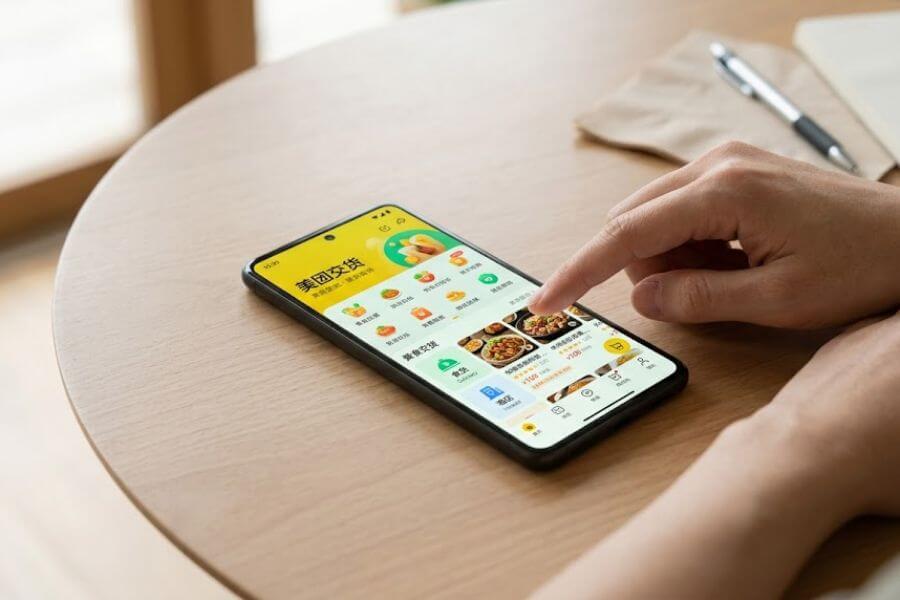
Key Takeaway
Meituan is your ultimate all-in-one app for navigating daily life, ordering delicious food, and booking comfortable stays. By mastering the Chinese interface with simple visual cues, setting up your payment method, and using built-in translation strategies, you can easily unlock the best local deals and experiences just like a local resident.
Getting Started with the Green Giant App
Imagine walking down a bustling street, your stomach rumbling for authentic local dumplings, while you also need to find a cozy room for the night. Instead of opening five different apps, you only need one. That app is Meituan. Known for its distinct bright green and yellow colors, this platform is the ultimate digital swiss-army-knife for anyone living in or visiting the region. It handles everything from food delivery to hotel reservations, bike sharing, and movie tickets.
For beginners, the massive home screen can look overwhelming. It is packed with bright icons, flashing banners, and a sea of characters. Do not let that scare you away. Once you learn where the main buttons sit, navigating the app becomes a fun, predictable pattern. You will be browsing through thousands of local businesses in no time.
Downloading and Installing the App
Your first step is getting the app onto your smartphone. Open your device app store, whether you use an Apple device or an Android device. In the search bar, type the name of the app. Look for the icon that features a stylized green or yellow background with the official logo. Tap the download button.
Because the app is large and updates frequently to add new features, make sure you are connected to a stable wireless network. Once the download finishes, open the app. You will see a few splash screens welcoming you. Swipe through them or tap the skip button in the top corner to reach the main interface.
Creating Your Personal Account
Now that the app is open, you need a personal account to save your delivery addresses and secure your hotel bookings. Look at the bottom right corner of the screen. You will see a small icon shaped like a person. Tap this icon to open your profile page. A large login prompt will pop up automatically.
The platform allows you to sign up using your mobile phone number. This is highly convenient because the app supports international phone numbers from dozens of countries. Tap the country code dropdown menu, find your home country code, and type in your mobile number. Tap the large button below to send a verification code to your phone.
Within a few seconds, you will receive a text message containing a four-digit or six-digit number. Type this code into the boxes on your screen. The app will verify the code instantly and log you in. You now have an active account ready for action.
Navigating the Busy Home Screen
When you tap back to the main home tab in the bottom left corner, you meet the central hub of the app. The top section features a prominent search bar. If you know the exact name of a food dish or a specific hotel, you can type it directly into this bar.
Below the search bar, you will see rows of colorful round icons. These icons represent the different services available on the platform. The exact arrangement can change depending on your location, but the main services always occupy the top spots.
To help you understand the layout immediately, look for these specific icons on your home screen:
| Icon Visual Description | Main Service Category | What It Does |
| Yellow scooter or a delivery box | Food Delivery | Brings hot meals straight to your door |
| Classic bed or hotel building | Hotel Booking | Secures rooms, hostels, and luxury stays |
| Fresh vegetables or a grocery bag | Grocery Delivery | Ships fresh ingredients and snacks to you |
| Bicycle wheel or a green bike | Bike Sharing | Unlocks public bicycles parked on the street |
| Movie clapperboard or theater seat | Movie Tickets | Lets you pick seats for local films |
Setting Up Your Location Correctly
Before you try to order food or browse hotels, you must ensure the app knows where you are standing. In the very top left corner of the screen, you will see the name of a city. Tap on that city name to open the location selection menu.
If your phone GPS is turned on, the app will show your current city at the top of the list. Tap the button that says use current location. If you are planning a trip to a different city and want to book a hotel in advance, you can scroll through the alphabetical list of cities or use the search bar to type the name of your destination city. Setting this correctly ensures you see accurate prices and available vendors.
Setting Up Your Payments and Address
You cannot order a warm bowl of noodles or secure a room without a valid way to pay the business owners. Fortunately, the platform has become highly accommodating to international users over the years. You do not necessarily need a local bank account to complete your transactions anymore.
Taking ten minutes to set up your payment methods and your delivery addresses before you feel hungry will save you from a lot of stress later. This preparation ensures that when you find the perfect meal, you can checkout with a single tap.
Linking International and Local Bank Cards
To add a payment card, return to your profile tab by tapping the person icon in the bottom right corner of the screen. Look for an icon shaped like a wallet. Tap on this wallet icon to enter the financial center of the app. Inside, you will see an option that translates to my cards.
Tap the add card button. The app will ask you to enter your card number. You can type it manually or use your phone camera to scan the front of your card. The platform accepts major global credit networks including Visa and Mastercard, alongside local cards.
After entering the card number, you will need to fill out your full name exactly as it appears on the card, the expiration date, and the three-digit security code on the back. The app might process a tiny temporary charge to verify that the card is active. This charge disappears quickly.
Connecting Through Third-Party Payment Apps
If you prefer not to enter your credit card details directly into the app, you can utilize popular local digital wallets. The platform integrates seamlessly with apps like Alipay and WeChat Pay. This is often the smoothest route for travelers who already have those services active on their devices.
When you reach the final payment screen during an order, the app will display a list of payment options. You will recognize the green logo of WeChat Pay and the blue logo of Alipay. Tapping either of these options will open that respective app automatically, allow you to confirm the amount, and send you back to Meituan once the payment succeeds.
Adding Your First Delivery Address
To get food brought to you, the system needs a precise drop-off spot. On your profile page, look for an icon that resembles a small map pin or a house. Tap this to open your address management screen, then tap the large button at the bottom to create a new address.
The address form requires four key pieces of information to ensure the driver can find you without getting lost:
- The Contact Name: Enter your name here so the driver knows who to ask for when they arrive at your building.
- The Phone Number: Provide an active mobile number. The driver will call you if they cannot find your entrance.
- The Main Building Location: Use the built-in map selector to search for your hotel name, apartment complex, or office building.
- The Specific Unit Number: Type in your exact room number, floor number, or apartment letter so the driver knows which door to knock on.
Using Translation Tools for Smooth Input
Since the address input boxes require text, you might wonder how to copy local characters into the fields if you do not speak the language. The best strategy is to open your favorite translation app on your phone. Type your hotel name or current address in English, convert it, and copy the characters.
Paste those characters directly into the main building location bar in Meituan. The app will suggest matching locations on a map. Compare the shapes of the characters to make sure they match your hotel business card or online confirmation. Tap the correct match, and the app will fill out the geographical details automatically.
Mastering Local Food Delivery
Now comes the most exciting part of using the app: ordering food. The food delivery ecosystem is incredibly fast, efficient, and affordable. Whether you want a single cup of bubble tea, a spicy hot pot feast, or a simple Western sandwich, you can get it delivered directly to your location at almost any hour of the day or night.
The delivery drivers wear bright uniforms and ride fast electric scooters. They know the streets perfectly, which means your food usually arrives hot and fresh within thirty to forty minutes of placing your order.
Finding the Food Delivery Section
Look at your home screen and locate the primary food delivery icon. It is usually a bright yellow icon featuring a little black scooter or a bounding animal logo. Tap this icon to enter the dedicated food marketplace.
Once inside, the top of the screen will show categories like fast food, local stir-fry, milk tea, desserts, and healthy salads. Below these categories, you will see an endless scrollable list of nearby restaurants. The app automatically sorts these restaurants based on how close they are to your current map pin.
Filtering and Selecting the Perfect Restaurant
With hundreds of choices available, you need a way to narrow down your options. The app offers a helpful filter bar right beneath the category circles. You can sort restaurants by their average review score, the speed of delivery, or the minimum order cost.
When you look at a restaurant listing, you will notice several numbers. A score out of five stars shows customer satisfaction. Another number shows how many orders the restaurant has completed in the past month. A higher order volume generally means the food is fresh and the kitchen moves fast. You will also see a delivery fee and an estimated arrival time, which helps you plan your mealtime perfectly.
Reading the Digital Menu Without Language Skills
Tap on a restaurant that looks appealing to open its full digital menu. The menu is divided into tabs along the left side of the screen. The top tabs usually feature the most popular items or special discount combinations.
Every item should have a clear photo next to it. You can see exactly what the dish looks like, which helps you avoid ingredients you do not like. To add an item to your digital shopping cart, tap the small plus sign icon next to the price.
Customizing Your Dish Options
When you tap the plus sign on certain items, a pop-up window will appear with multiple choices. This is where you customize your dish. For drinks, you will select your sugar level and your ice preference. For savory food, you will choose your spice level or your preferred side dish.
To help you decode these customization options, keep this quick reference guide in mind:
| Character Meaning | Common Food Term | What to Expect |
| Not spicy | Bu La | Zero chili used in the cooking process |
| Mildly spicy | Wei La | A gentle kick suitable for beginners |
| Medium spicy | Zhong La | A noticeable heat that makes your tongue tingle |
| Extra spicy | Te La | Intense fire meant for true spice lovers |
| Regular sugar | Quan Tang | Full sweetness for drinks and teas |
| Half sugar | Ban Tang | Balanced sweetness that is not too heavy |
| Less ice | Shao Bing | Keeps your drink cold without watering it down |
Reviewing Your Cart and Finalizing Your Order
Once you finish choosing your food, tap the large bar at the bottom right corner of the screen. This bar shows your total cost and takes you to the final review page. Here, you will see a summary of your items, the added delivery fee, and any active coupons the app applies automatically to save you money.
Check the very top of this page to confirm that your delivery address is correct. If you are staying in a hotel where drivers are not allowed to go up to the rooms, you can type a note in the remarks box asking the driver to leave the food at the front desk or inside the lobby food locker. Tap the payment button to authorize the transaction.
Tracking Your Scooter Driver in Real Time
As soon as your payment goes through, the app switches to a live tracking screen. You will see a small map that updates constantly. First, it shows a little icon of the restaurant preparing your food. Once the food is ready, a small scooter icon will appear on the map.
You can watch the driver move down the streets toward your building in real time. The app displays an updated countdown showing exactly how many minutes remain before arrival. If the driver runs into a closed gate or needs help finding your entrance, they might send a text message through the built-in app chat system.
Receiving Your Warm Food
When the driver gets close, your phone will often ring, or you will receive a notification. Walk down to your lobby or open your apartment door. The driver will hand you your bag with a polite greeting.
Check your bag to make sure you have your utensils, straws, and napkins. If everything looks good, you can open the app later to give the restaurant and the hardworking driver a high rating. Now, sit down and enjoy your fresh meal.
Booking Hotels Like a Professional
Beyond satisfying your hunger, this platform is an excellent tool for securing accommodations. Whether you need a quick room for an unexpected overnight stay or you are planning a massive summer holiday across multiple cities, the hotel booking engine offers an incredible selection of properties.
You can find everything from small family-run guesthouses in rural villages to five-star international luxury resorts in major city centers. The prices are often highly competitive because the platform negotiates directly with local hotel groups.
Entering the Dedicated Hotel Portal
Go back to the main home screen of the app. Look for the icon that shows a bed or a hotel building. Tap this icon to enter the accommodation marketplace. The screen layout will change to focus entirely on travel tools.
At the top of this travel portal, you will see a box containing your destination city, your check-in date, and your check-out date. Tap on the dates to open a calendar view. Tap your arrival day and your departure day, then tap the confirm button at the bottom.
Using Advanced Filters to Find the Right Room
Once you tap the main search button, the app displays a list of all available properties in that area. Because there are often thousands of choices, using the filter options along the top of the list is essential for finding a place that fits your budget and lifestyle.
You can sort the results by price per night, distance to popular tourist sights, or customer review scores. If you want specific amenities, tap the comprehensive filter button. Here, you can check boxes for properties that offer free wireless internet, swimming pools, fitness centers, free breakfasts, or twenty-four-hour front desks.
Evaluating Hotel Listings and Review Sections
Tap on a hotel listing that catches your eye to open its detailed profile page. The top of the page features a gallery of photographs showing the exterior of the building, the lobby, the rooms, and the bathrooms. Swipe through these photos to get an idea of the property quality.
Scroll down past the photos to read the customer review section. Guests frequently upload real, unedited photos of their rooms alongside their text reviews. Look at the numerical sub-scores for cleanliness, service, location, and facilities. If a hotel maintains a high score across hundreds of reviews, it is generally a reliable choice.
Understanding Room Types and Policies
Each hotel profile page lists various room types, such as standard queen rooms, twin bed rooms, or deluxe suites. Under each room type, you will see several individual booking options that have different prices based on specific policies.
To make sure you choose the right option, check these vital details before clicking book:
- Breakfast Inclusion: Look for symbols or words indicating if a morning meal is included for one guest, two guests, or not included at all.
- Cancellation Policy: Some low rates are non-refundable, meaning you lose your money if your plans change. Other rates allow free cancellation until the day before arrival.
- Bed Dimensions: The listing usually specifies the width of the beds in meters so you can ensure you will sleep comfortably.
- Window Availability: Some budget rooms in crowded cities do not have exterior windows. Check the room details to confirm your room has a window if you need natural light.
Navigating the Foreign Guest Registration Rules
This is a critical step for international travelers. Local regulations require hotels to hold specific licenses to host foreign passport holders. Before you book a room, you must make sure the hotel can legally accept you as a guest.
Look at the filter section or check the hotel policies paragraph near the bottom of the page. Many listings will explicitly state if they only accept guests with local identification cards. If the text is confusing, copy the hotel name, paste it into a translation app, and look for any warnings regarding guest citizenship. Choosing a hotel that fully welcomes international travelers prevents stressful situations at the check-in desk.
Completing the Booking and Preparing Your Passport
Once you select your perfect room option, tap the book button. The app will open a page asking for the names of the guests who will stay in the room. Type your full name exactly as it is written in your passport. Do not use nicknames or abbreviations.
Enter your contact mobile number and your email address. Review the final price, which includes all taxes and service fees. Tap the submit button and pay using your linked card or digital wallet. The app will generate a digital confirmation voucher containing a booking number within a few minutes. When you arrive at the hotel lobby, simply present your physical passport to the receptionist, and they will pull up your reservation in their system.
Helpful Tips for a Seamless User Experience
Navigating an app designed for a different language can feel like an adventure. While it might seem challenging at first, you can use a few clever strategies to handle any situation like an absolute expert.
With a little practice, you will find that visual patterns and modern technology make the entire process highly predictable. You do not need to understand every single character to get your food delivered hot or your hotel room keys handed to you with a smile.
Relying on Smartphone Screenshots for Fast Translation
The most powerful tool in your digital arsenal is your phone screenshot feature. Whenever you encounter a screen inside the app that contains critical information, take a quick screenshot.
Open your preferred translation app and upload that screenshot into its image translation tool. The tool will overlay English words directly on top of the original layout. This method is incredibly useful for reading complex food ingredients, understanding detailed hotel cancellation policies, or viewing special instructions from your delivery driver.
Mastering the App Icon System
Human beings are highly visual creatures, and app designers know this. Almost every major button inside the platform uses an iconic graphic that tells you exactly what it does. By memorizing these common visual cues, you can zip around the app without reading a single word of text.
Take a look at this list of universal symbols scattered throughout the application interface:
- The Shopping Basket: This sits at the bottom of your food screens and holds the items you want to purchase.
- The Magnifying Glass: This is your universal search symbol for finding specific dishes, restaurants, or locations.
- The Headset or Question Mark: Clicking this icon connects you directly to the customer support chat center.
- The Gear Symbol: Located in the top corner of your profile page, this opens your app settings where you can manage account security.
- The Star Symbol: This button allows you to bookmark your favorite restaurants so you can find them instantly in the future.
Managing Communication with Your Delivery Driver
Sometimes a delivery driver needs to contact you. They might find that your apartment building door is locked, or they might want to confirm that it is okay to leave your food at the hotel reception desk. The app includes a text message chat room that makes this communication incredibly smooth.
When a driver sends you a message, a notification bubble will pop up on your screen. Tap it to open the chat log. The platform features an automated translation button right next to the incoming message. Tap that button, and the driver words will transform into English. You can then type your reply in English, and the system will translate it back to the driver, ensuring a clear exchange.
What to Do If You Encounter an Issue
If your food takes much longer to arrive than expected, or if there is a mistake with your hotel room, you can request assistance easily. Every order page features an online customer service button.
Tapping this button connects you to a customer service robot that offers automated solutions for common problems, such as requesting a refund or canceling an order. If the robot cannot solve your issue, you can type human agent into the chatbox. A live customer service representative will join the chat room to help resolve your problem manually.
Frequently Asked Questions
Can I use this app if I do not speak or read the local language?
Yes, you can absolutely use the app without knowing the language. By using your phone to take screenshots and running them through a translation app, you can easily read menus, hotel descriptions, and checkout pages. The app layout is highly visual, featuring detailed photographs of food dishes and hotel rooms, which lets you make choices based on images. The built-in text chat also features an automatic translation tool, allowing you to communicate with delivery drivers and hotel staff smoothly.
Can I link an international credit card to my account for payments?
Yes, the platform fully supports major international credit and debit cards, including Visa and Mastercard. You can add these cards directly into the wallet section of your profile by entering your card number, expiration date, and security code. Additionally, you can connect the app to popular third-party payment wallets like Alipay or WeChat Pay, which often serve as a highly reliable payment method for international travelers moving through the region.
How do I know if a specific hotel accepts international travelers?
Local laws require hotels to hold proper licenses to accommodate foreign passport holders. To check if a hotel is authorized to host you, look at the hotel policies section near the bottom of the individual hotel page inside the app. You can also use the filter sidebar when searching to select properties that cater to international guests. If you want to be completely certain before booking, copy the hotel name into a translation app, search for their customer service phone number, or send a quick message to confirm they can check in foreign guests.
What should I do if my food delivery driver calls me but I cannot speak to them?
Do not panic if your phone rings and you cannot understand the driver. Hang up gently and immediately open the Meituan app. Navigate to your active order tracking screen and open the text chat window. Drivers will quickly realize there is a language barrier and will switch to sending text messages instead. You can use the automated translation button inside the chat box to read their messages and reply in your own language, which the app will translate for them automatically.
Is it possible to cancel a food order or a hotel booking after paying?
For food delivery, you can cancel an order freely if the restaurant has not started preparing your food yet. If the kitchen is already cooking your meal, you will need to message the restaurant through the app to request a mutual cancellation. For hotel bookings, the cancellation policy depends entirely on the specific room rate you selected during checkout. Some promotional rates are non-refundable, while standard rates often allow completely free cancellation up to twenty-four or forty-eight hours before your scheduled arrival time. Always review the specific room policy before finalizing your payment.
Where will the delivery driver leave my food if I am staying in a hotel?
Many hotels do not allow delivery drivers to ride the elevators up to guest rooms due to safety and privacy policies. If you are staying in a hotel, your driver will usually leave your food bag at the front desk lobby, with the security guard at the main entrance, or inside a dedicated yellow delivery locker box located near the hotel front doors. You can type a note in the order remarks box during checkout to tell the driver exactly where you would like them to drop off your food bag.